Guide · Blog Post
ClickUp Slow? How to Find the Cause and Speed Up Your Workspace
Slow loading is the complaint ClickUp users raise most, in reviews, on Reddit, and on ClickUp's own feedback board. Some of it is ClickUp's to fix. Much of it comes from how a Workspace has grown: views that load every task ever created, years of finished projects, duplicate fields, and automations nobody remembers. Here is how to tell which problem you have, and the fixes that actually help.
By Mehadi Hasan 8 min read
1. First, find out who is slow
Slowness is the most common ClickUp complaint by a wide margin. G2 tags over a thousand reviews with it, and the "web app performance and speed issues" request on ClickUp's own board has about 1,100 votes (feedback board). Some of it is ClickUp's to fix. A lot of it is how a Workspace has grown, and that part you can fix. Start by working out which kind you have:
- Everyone, everywhere, at once, starting today: check status.clickup.com. ClickUp had several multi-hour slowdowns in 2026. Nothing to fix on your side.
- One person: it is their browser, device, extensions, or network. See section 2.
- Everyone, but only in certain views or Spaces: it is the Workspace design. See sections 3 to 6. This is the most common case.
2. Fixes for one slow user
- Hard refresh, then try a private window with no extensions (hard refresh, clearing the cache). If the private window is fast, an extension or stale cache is the cause.
- Close extra ClickUp tabs. Each tab is a full copy of a heavy app; several open Docs and views can use gigabytes of memory.
- Desktop app cache. The desktop app's cache is not cleared automatically and users report it growing to tens of thousands of files (feature request). Clearing it, or reinstalling, often helps.
- Mobile. Clear the app cache on Android; delete and reinstall on iOS (mobile troubleshooting).
3. Stop opening "show me everything" views
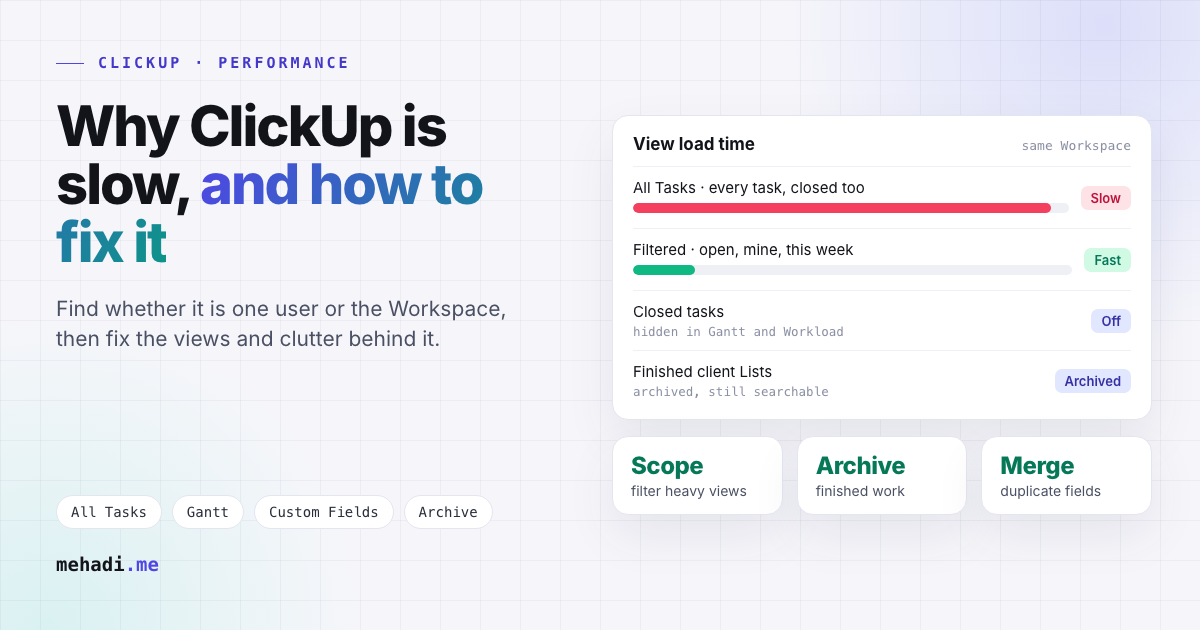
The slowest screens in most Workspaces are the ones that load the most tasks: the All Tasks view (called Everything before ClickUp 4.0), Workload and Gantt across whole Spaces, and dashboards that read every List. Users report All Tasks views taking over a minute in large Workspaces (feedback thread).
- Scope views with filters: assignee, a date window, open statuses only. Save them so nobody rebuilds an unfiltered view (saving filters).
- Keep closed tasks hidden. List view hides them by default; Gantt shows them by default, so turn them off in its view bar. Workload has its own show/hide closed setting (working efficiently).
- Give people a home that loads fast. Point the team at a Favorited List or a filtered "My work this week" view instead of All Tasks.
- Delete views nobody opens. Every List picks up views over the years. Fewer views means less to load and less to choose from.
ClickUp caches List views that take more than a few seconds to load, per user and view settings, for up to 7 days (view caching). That is why a view can be fast for you and slow for a colleague with different filters.
4. Archive what is finished
Old projects, closed client Lists, and years of completed tasks still sit in the Workspace, in search, and in any view that is not filtered. Archiving is available on every plan, is reversible, and moves items out of normal views; you can still find them with the Archived filter (archiving). ClickUp staff also say archived and closed items rank lower in search.
- Archive whole Lists and Folders for finished projects and former clients, not task by task.
- Pick a rule and write it down, for example "archive a client List 60 days after its last task closes".
- ClickUp does not archive closed tasks automatically; that is still an open request (feature request). Put a monthly reminder on someone's calendar, or script it through the API.
To be fair to ClickUp: I have not found an official statement that archiving makes the app faster. In practice, smaller views and search indexes are faster, and archiving is the safest way to get there.
5. Cut Custom Fields, automations, and ClickApps
Large Lists with many Custom Fields are a common lag report, and both consultants and support point to field and automation sprawl in slow Workspaces (ConsultEvo). It also makes the product harder to learn, which is the other top complaint.
- Merge duplicate fields. "Client", "Client Name", and "Customer" on different Lists is one field. Create shared fields once at the Space or Workspace level instead of per List.
- Delete fields nobody filters, sorts, or reports on. If a field only exists because a template had it, remove it.
- Turn off ClickApps you do not use per Space (Space menu, then ClickApps). Fewer features on means fewer columns, menus, and prompts (ClickApps).
- Audit automations. Rules that loop or fire on every field change add load and use your monthly quota. See ClickUp automations not working.
- Split giant Docs into sub-pages. Large Docs are one of the most reported lag sources.
6. Keep the hierarchy shallow
ClickUp's structure is Workspace, Space, Folder (optional), List, task, subtask (intro to the Hierarchy). Slow, confusing Workspaces usually have too many Spaces, a Folder for everything, and the same field defined many times. ClickUp's own guidance (hierarchy best practices) is a good default:
| Level | Use it for |
|---|---|
| Space | A department, team, or major client. Few and broad; set statuses, ClickApps, and shared fields here. |
| Folder | Only for large projects that need several Lists. Lists can sit directly in a Space. |
| List | One project, or one stage of a large project. |
| Task / subtask | The work. Use subtasks sparingly; checklists are lighter. |
If one task truly belongs in two places, the Tasks in Multiple Lists ClickApp is better than copies, with one catch: status and fields come from its home List, and turning the ClickApp off removes the extra placements permanently (Tasks in Multiple Lists).
7. A one-afternoon cleanup plan
- Ask the team for their three slowest screens. Write down the view type and location for each.
- Add filters and hide closed tasks on those views, and save them.
- Archive every List and Folder for finished projects and former clients.
- List Custom Fields per Space; merge duplicates and delete unused ones.
- Turn off unused ClickApps per Space.
- Open each Space's automations and remove duplicates and loops.
- Re-test the three slow screens. If they are still slow and the Workspace is lean, open a ticket with ClickUp support with the view links and load times; they can diagnose Workspace-specific issues.
If, after all that, the team still spends its day waiting on ClickUp, it may be the wrong tool for that team's size or work. Engineering teams in particular often move to Jira or Linear. That is a bigger decision, and worth making on evidence from a cleaned-up Workspace rather than a cluttered one.
Workspace still crawling?
Tell me your plan, roughly how many tasks and Spaces you have, and which screens are slow. I will reply within 1 business day with what I would clean up first and whether it is worth automating. See my n8n automation service.
Get my free automation reviewFrequently asked questions
Why is ClickUp so slow?
Usually because views load too many tasks. All Tasks (formerly Everything), Workload, Gantt, and dashboards across whole Spaces load every matching task, including years of closed work. Duplicate Custom Fields, unused ClickApps, looping automations, and very large Docs add to it. Sometimes it is a ClickUp incident, which status.clickup.com will show.
Does archiving tasks make ClickUp faster?
Archived items drop out of normal views, and ClickUp staff say archived and closed items rank lower in search, so views and search have less to load. ClickUp has not published a statement that archiving improves performance, but it is the safest way to shrink heavy views, and it can be undone.
Is the ClickUp desktop app faster than the browser?
Sometimes, but not reliably. The desktop app keeps a cache that is not cleared automatically and can grow large enough to slow it down. If one person is slow, try a private browser window with no extensions and clear the desktop app cache before anything else.
How should I structure a ClickUp Workspace so it stays fast?
Keep it shallow: a few broad Spaces for departments or major clients, Lists directly in Spaces unless a project needs several Lists, shared Custom Fields created once at Space or Workspace level, and finished projects archived on a regular schedule.
Checked November 27, 2026 against ClickUp's help center, status page, and feedback board linked above. ClickUp 4.0 renamed some features (Everything is now All Tasks); menu names may differ slightly in your Workspace.