Guide · Blog Post
ClickUp Automations Not Working? The Limits Behind It, and How to Fix Each One
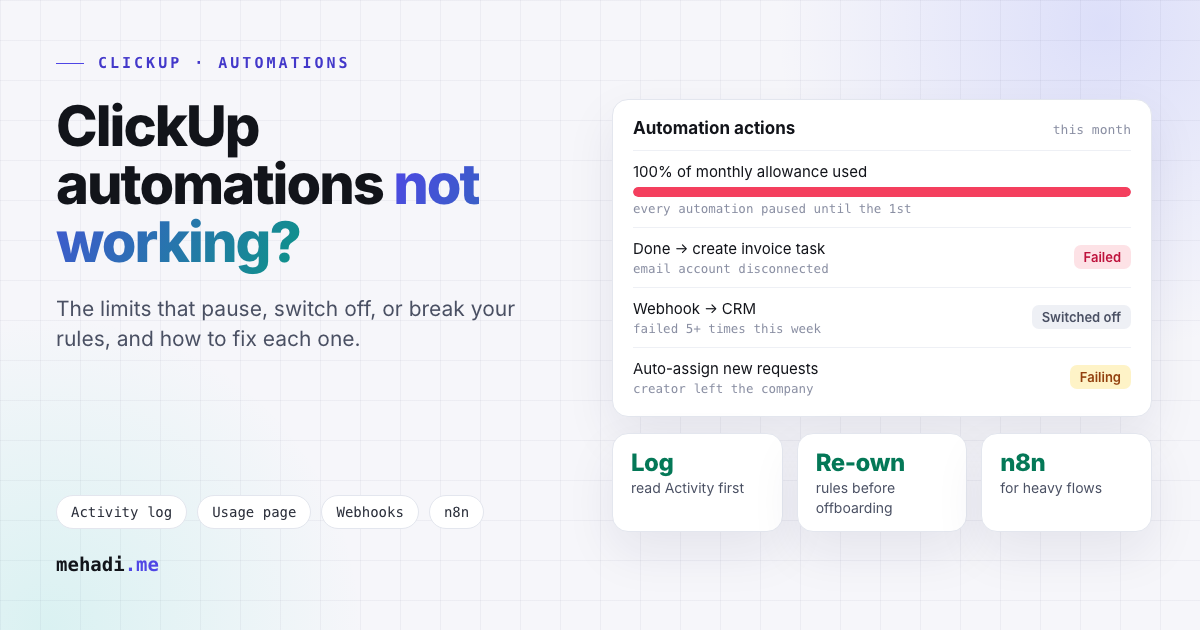
When ClickUp automations stop, it is rarely random. Usually one of five things happened: the Workspace used up its monthly actions and every automation paused, a run failed often enough that ClickUp switched it off, the person who built it left or lost access, the task came in through the API or an import, or two rules are fighting each other. Here is how to tell which one it is, how to fix it, and when to move a heavy flow out of ClickUp entirely.
By Mehadi Hasan 8 min read
1. Check the Activity log first
Before changing anything, read what ClickUp recorded. Open Automations in the List, Folder, or Space, choose Manage, click the pencil icon on the automation, then Activity in the upper right. Filter by Failed, Skipped, or Pending and expand a run to see the error text (tracking Automations activity). Three things to know while you read it:
- If one action in a run fails, the whole run is marked failed.
- Webhook actions are retried for a while after a failure and show as Pending until they succeed or give up.
- Permission problems, such as the automation's creator no longer having access to the destination List, also show in the Workspace Audit log on plans that have it.
No runs at all in the log usually means the trigger never fired (sections 5 and 6). Runs that stop on a date usually mean the quota (section 2).
2. The monthly action quota pauses everything
Every plan has a monthly allowance of automation actions. The trigger is free; each action that runs counts, including actions that fail (Automations availability and limits). The allowance resets on the 1st of each month, Pacific time, and owners and admins get an email at 90% and 100%.
| Plan (new 2026 lineup) | Automation actions per month |
|---|---|
| Free Forever | 100 |
| Core | 1,000 |
| Business | 10,000 |
| Enterprise | Custom; ask your account team |
Figures are from the ClickUp pricing page for new Workspaces as of November 2026. Workspaces still on the older Unlimited, Business, or Business Plus plans keep their own allowances until they move, and third-party write-ups quote them inconsistently, so read your real number from the Automations usage page rather than from a blog, this one included.
Actions are counted per task, not per rule. One run of a scheduled rule that updates 25 tasks uses 25 actions, which is how a single Monday-morning rule can use a small team's month in a few weeks.
The part that hurts: when the allowance is used up, all of the Workspace's automations pause until the next reset, not just the noisy one. One looping rule in one client List can stop status updates, assignments, and notifications for every team for the rest of the month.
How to stay under it
- Find the heavy rules. The usage page shows which automations used the most actions. A handful of rules almost always account for most of the total.
- Merge rules that share a trigger. Three separate "when status changes to Done" automations can usually be one automation with three actions, which is easier to audit even though each action still counts.
- Fix rules that fail repeatedly. Failed actions still count, so a broken email or webhook action burns quota every time it runs.
- Watch for loops. A rule that changes a field another rule watches can run many times for one real event.
- Buy more, or move it out. Higher plans can buy extra actions. For high-volume logic, an external workflow tool calling the API often costs less (section 7).
Users have asked for better per-automation usage tracking for a long time (feature request), so check the usage page monthly instead of waiting for the 90% email.
3. ClickUp switched the automation off
An automation that fails more than five times in a week with the same error is deactivated automatically, and its creator (or the Workspace owner, if the creator is gone) gets an email (Activity docs). If nobody reads that inbox, the rule just looks dead. Common causes in the error text:
- Email actions fail when the connected sending account is no longer authenticated. Reconnect it, then turn the automation back on.
- Webhook actions fail when the receiving URL changed or returns errors. Test the endpoint on its own first.
- Missing destinations. A rule that moves or creates tasks in a List that was archived, deleted, or made private fails on every run.
4. The person who built it left
Automations run with their creator's access. When that person is removed, downgraded to a guest or limited member, or loses access to a Space, rules that touch locations they can no longer reach start failing. It is one of the most common causes after staff changes, and it usually shows up weeks later.
- Before removing anyone, list the automations they created and rebuild or reassign them under a long-lived admin account.
- For a Workspace with many rules, consider one dedicated admin user (a shared ops account, if your plan and policy allow it) that owns every production automation.
- Write down what each automation is for in its name, for example "Client Onboarding: Done → create invoice task". The person who inherits it will need that.
5. The trigger never fired
If the Activity log shows nothing at all, the event the trigger waits for did not happen the way the rule expects:
- Wrong location. Automations apply to the location they were created in and below. A rule on one List does not see tasks in a sibling List. A task in multiple Lists takes its status and fields from its home List, which can surprise rules built on the secondary one (Tasks in Multiple Lists).
- Moved, not created. Moving an existing task into a List is not "task created", so creation triggers do not fire.
- Imports and the API. Users regularly report that tasks created through integrations, imports, or the API do not trigger the same rules as tasks created in the app, or trigger them late (troubleshooting roundup). If tasks arrive from another tool, do the follow-up work in that tool's workflow rather than relying on a ClickUp trigger.
- Conditions. A condition such as "priority is Urgent" checks the value at the moment of the trigger. If a form or integration sets priority a second later, the condition is false and the run is skipped. Skipped runs do show in the log.
6. It fired twice, or rules fight each other
Duplicate subtasks, double comments, and statuses that flip back and forth usually come from overlapping rules: one on the Space and a near-copy on a List inside it, or a template that brought its own automations into a location that already had them. Open Automations at each level of the hierarchy (Space, Folder, List) and look for rules with the same trigger. Keep one, at the highest level that makes sense, and delete the rest.
7. When to move a flow out of ClickUp
ClickUp's builder is good for simple, in-app rules: set an assignee, change a status, apply a template, post a comment. It gets fragile when a flow is high volume, touches other tools, or needs real error handling. Those are the flows I move to n8n (or Make, or Zapier), driven by ClickUp webhooks and the API:
- Cross-tool work: CRM deals creating projects, form submissions becoming tasks with files, invoices created when a task closes.
- High-volume updates that would eat the monthly allowance, batched instead of one action per event.
- Anything that must not fail silently. An external workflow can retry, alert Slack or email when a step fails, and keep a log of every run.
- Logic the builder cannot express: lookups across Workspaces, deduplication, approvals, or AI steps with checks.
Two limits to plan for. The ClickUp API allows 100 requests per minute per token on Free, Unlimited, and Business, 1,000 on Business Plus, and 10,000 on Enterprise, and returns HTTP 429 above that (API rate limits). And writes made through the API can still trigger your in-app automations, so the design has to avoid loops between the two. For n8n specifics, see making n8n workflows production-ready.
8. A monthly automation checklist
- Open the Automations usage page and note the top five rules by actions used.
- Filter each Activity log for Failed in the last 30 days and fix or delete those rules.
- Check for deactivation emails in the owner's and creators' inboxes.
- Confirm every production automation is owned by someone who still works there.
- Search for duplicate triggers across Space, Folder, and List levels.
- Move any flow that failed silently twice into a tool with alerts.
Automations keep pausing or misfiring?
Tell me which ClickUp plan you are on, how many actions you use a month, and which flows break. I will reply within 1 business day with what I would keep in ClickUp, what I would move to n8n, and roughly what that involves. See my n8n automation service.
Get my free automation reviewFrequently asked questions
Why did all my ClickUp automations stop at once?
Most likely the Workspace used up its monthly automation actions. When that happens, every automation in the Workspace pauses until the allowance resets on the 1st of the month, Pacific time. Owners and admins get emails at 90% and 100%; the Automations usage page shows which rules used the most.
How many automation actions does ClickUp allow per month?
On the plans ClickUp sells to new Workspaces as of November 2026, the pricing page lists 100 actions a month on Free, 1,000 on Core, and 10,000 on Business, with Enterprise custom. Older plans have their own allowances, so check your Workspace's Automations usage page for the real number.
Do failed ClickUp automations count against the limit?
Yes. Every action that runs counts, even if it fails, and actions are counted per task, so one run that updates 25 tasks uses 25 actions. An automation that fails more than five times in a week with the same error is also switched off automatically.
Why did an automation stop after someone left the company?
Automations run with their creator's access. If that person is removed, downgraded, or loses access to a location the rule touches, it starts failing. Rebuild or reassign their automations under a long-lived admin account before removing them.
When should I use n8n or Make instead of ClickUp automations?
For high-volume updates that would use up the monthly allowance, flows that span several tools, and anything that must not fail silently. An external workflow can batch work, retry, alert you when a step fails, and keep a log, within ClickUp's API rate limits.
Checked November 27, 2026 against ClickUp's help center, pricing page, developer docs, and feedback board linked above. ClickUp is moving Workspaces to new plans through 2026 and 2027, so limits differ between Workspaces; confirm yours on the Automations usage page.