Guide · Blog Post
Too Many ClickUp Notifications? A Settings and Habits Guide That Actually Quiets the Inbox
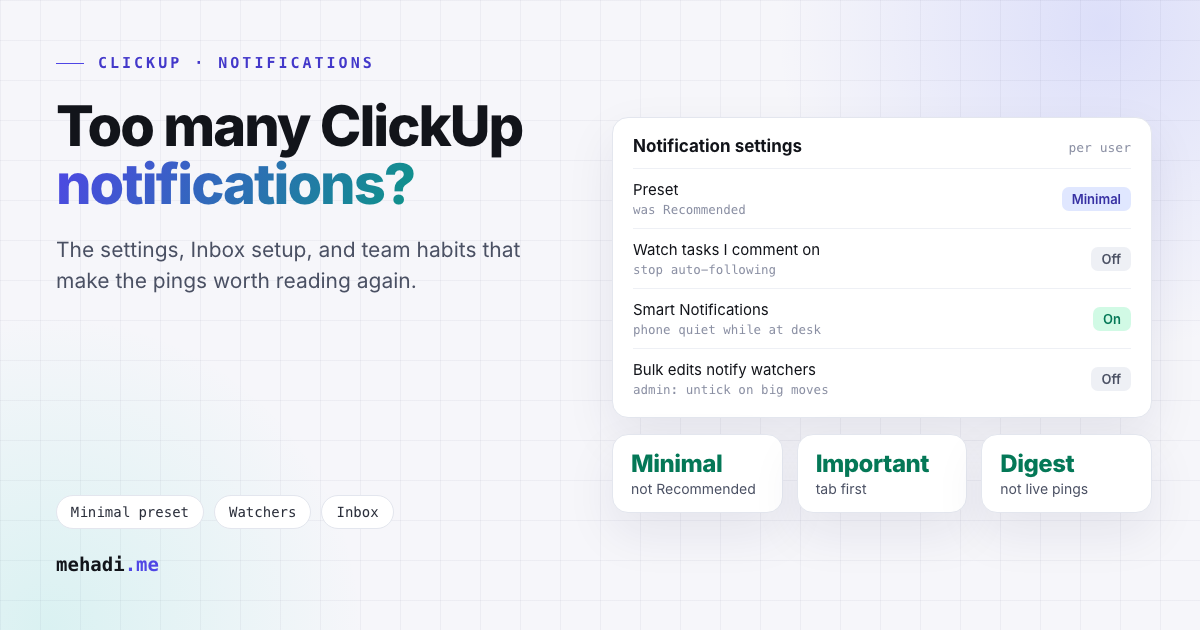
ClickUp's defaults notify you about almost every change on every task you have ever touched, so most Inboxes become noise and people stop reading them. You can fix most of it in ten minutes of your own settings, a few admin changes that stop the Workspace creating noise, and a handful of team habits. This guide covers all three, including the notifications you cannot turn off.
By Mehadi Hasan 7 min read
1. Why ClickUp notifies you about everything
ClickUp's default notification preset, Recommended, notifies watchers about almost every change, and you become a watcher of a lot: tasks you create, are assigned, are mentioned in, or comment on. Add ClickBot messages from automations, due-date reminders, and integration updates, and the Inbox fills faster than anyone can read it. People stop opening it, and then they miss the one mention that mattered. ClickUp's feedback board has several long-running threads on exactly this (granular settings request).
The fix has three layers: your own settings (section 2), how the Workspace creates noise (section 4), and team habits (section 5). One limit to know first: notification settings can only be changed on web or desktop, not in the mobile app (notification settings).
2. Fix your own settings in ten minutes
Open your avatar menu, then Notifications (or the settings icon in Inbox). Settings are per user and per Workspace, so repeat this in each Workspace you belong to.
- Switch the preset from Recommended to Minimal. This is the biggest single change. A common consultant approach goes further: turn everything off, then turn back on only what you miss after a week (Process Driven).
- Set each channel separately. Inbox, Email, Browser, and Mobile each have their own toggles. A good default: everything you need in Inbox, only mentions and assignments by email or mobile, browser pop-ups off.
- Change when you are added as a watcher. Stop being auto-added to every task you comment on or edit; stay auto-added for tasks you are assigned.
- Turn on Smart Notifications so your phone stays quiet while you are active on web or desktop (Smart Notifications).
- Set the mobile mode to Focused or Mentions only in the mobile dropdown (mobile notifications).
- Turn off or quiet ClickBot messages from its menu if automations are flooding you.
Some notifications cannot be turned off, such as being told when watchers are added to a task; that request is marked not on the roadmap (feature request). The Inbox settings below handle those.
3. Make the Inbox work for you
- Customize Importance. In Inbox, Customize, choose what counts as Important (mentions, assignments, replies to you). Work from the Important tab and skim Other once a day (customize Inbox).
- Snooze, don't leave unread. Snoozed items move to the Later tab (it was called Snoozed before ClickUp 4.0) and come back when you need them (snoozing).
- Clear in bulk. Uncleared notifications are kept for three months and cleared ones for one, so clearing is safe (intro to Inbox).
- Unwatch tasks you only touched once. The eye icon on a task removes you.
- Mute for focus time from the avatar menu, or set a status that mutes notifications.
4. Admins: cut noise at the source
Admins cannot set notification defaults for other users yet. It is one of the most requested changes (feature request), and guests have to change their own settings too. What admins can do is stop the Workspace generating noise:
- Untick "Send notifications" on bulk edits. The Bulk Action Toolbar has this option and remembers it. Bulk-moving 200 tasks with it on notifies every watcher of every task.
- Review automations that comment or add watchers. A rule that posts "Status changed" comments or auto-follows tasks for a whole team is a common source of Inbox floods. Remove the comment action or point it at one person.
- Disable ClickApps and integrations nobody uses. Their notifications go away with them.
- Give a short notification guide to new members on day one: switch to Minimal, set Important, turn on Smart Notifications. It takes five minutes and saves weeks of ignored Inboxes.
5. Team habits that matter more than settings
- Mention people only when you need them to act. A mention bypasses most filters, so it is the one signal everybody should be able to trust.
- Use assigned comments for requests. They show up as something to resolve, not just one more notification.
- Keep watchers to the people who own the outcome. Managers can follow a filtered view or dashboard instead of every task.
- Send a digest instead of live updates. For stakeholders who need status but not every change, a daily or weekly summary from a saved view, built with an automation tool, beats dozens of pings. Daily and weekly digests are a long-standing request on ClickUp's feedback board.
Still buried in ClickUp pings?
Tell me how your team uses ClickUp and where the noise comes from. I will reply within 1 business day with what I would change and whether a digest or alert automation would help. See my n8n automation service.
Get my free automation reviewFrequently asked questions
How do I reduce ClickUp notifications?
Open your avatar menu, then Notifications, and switch the preset from Recommended to Minimal. Then set Inbox, Email, Browser, and Mobile separately, stop being auto-added as a watcher to tasks you only comment on, and turn on Smart Notifications so your phone stays quiet while you are at your desk.
Can I change ClickUp notification settings on mobile?
No. Notification settings can only be changed on web or desktop. The mobile app lets you pick a mode such as Focused or Mentions only, but the detailed settings are on desktop.
Can a ClickUp admin set notification settings for the whole team?
Not yet. Settings are per user and per Workspace, and admin defaults are an open feature request. Admins can reduce noise at the source by unticking Send notifications on bulk edits, removing automations that comment or add watchers, and turning off unused ClickApps.
Why do I get notified about tasks I am not working on?
You are probably a watcher. By default you are added as a watcher to tasks you create, edit, or comment on, and automations can add watchers too. Change the watcher rules in Notification settings and unwatch tasks with the eye icon.
Checked November 27, 2026 against ClickUp's help center and feedback board linked above. ClickUp renames notification presets and Inbox tabs between releases; the options here are from ClickUp 4.0.