Guide · Blog Post
ClickUp Billing Surprises: Paid Seats from Sharing, Renewals, and the 2026 AI Credit Plans
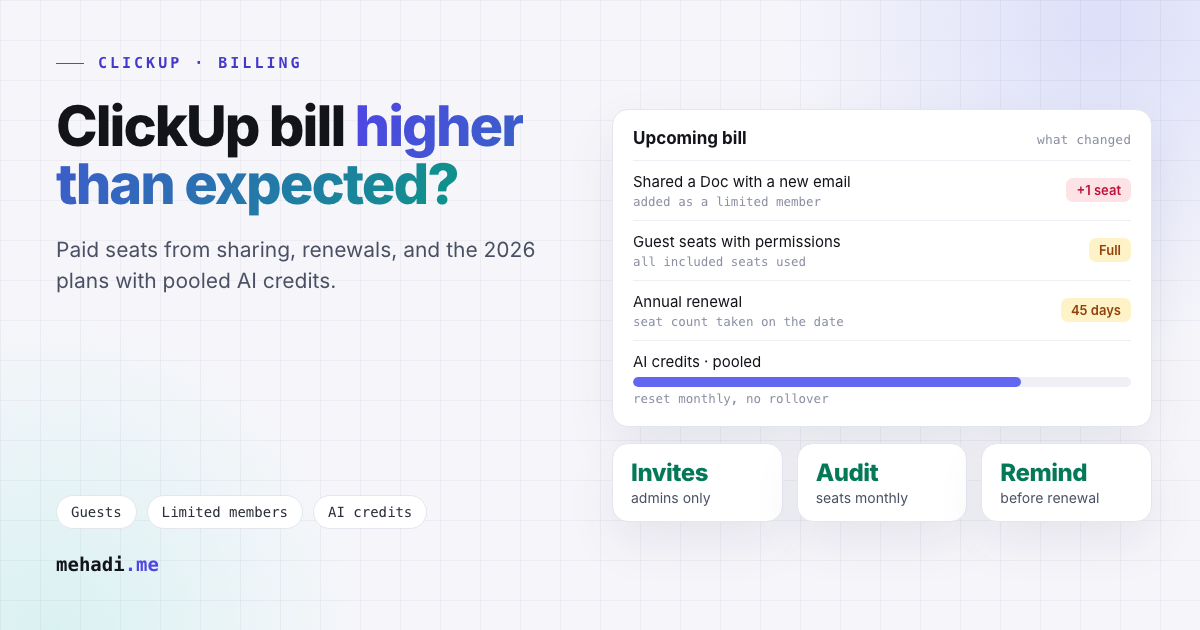
A ClickUp bill rarely jumps for one reason. Sharing a Doc can add a paid seat, renewals bill the seat count on the renewal date, and the late-2026 plan change bundled AI credits into new, higher-priced plans. Here is how each one works, how to stop it, and a monthly audit that keeps the bill where you expect it.
By Mehadi Hasan 8 min read
1. Where surprise ClickUp charges come from
Billing is the most common complaint in recent ClickUp reviews on Trustpilot and a steady theme on Reddit and ClickUp's feedback board. Threads describe a bill jumping from a few hundred dollars to over a thousand, six paid seats added by accident from a sharing dialog, and renewals that ignored seat reductions. Almost all of it traces back to four things:
- Sharing that quietly turns people into paid seats (section 2).
- Renewals and plan changes that happen on a date you did not plan for (section 3).
- The 2026 plan lineup and AI credits (section 4).
- Nobody owning the seat list (section 5).
2. Guests, Limited Members, and seats you did not mean to add
ClickUp has three kinds of people: members, limited members, and guests. Paid plans include a number of guest seats with permissions, which grows with paid members. Once those guest seats are used, inviting another guest with edit permissions adds a paid seat, and people from your own email domain are treated as members, not guests (pricing per user role and plan). On many plans limited members are billed like members.
The trap is that this happens inside ordinary actions. Sharing a Doc, assigning a task to a new email address, or adding someone from the Sharing & Permissions dialog can create a billable seat with no separate confirmation. One user reported about $1,500 billed for six seats added that way (feedback board), and there is an open request for admin approval before paid seats are added (feature request).
How to stop it
- Restrict who can invite. Workspace Settings, Security & Permissions has separate toggles for inviting members, guests, and limited members; some can only be switched off on higher plans (invite permissions). Leave invites to admins.
- Share view-only where you can. Clients who only need to see progress can get view-only guest access, a public or shared link to a view or Doc, or a Form for requests.
- Use one client Space with the views clients need, rather than inviting guests List by List.
- Check the role before you click Invite. If the dialog says member or limited member and you meant guest, stop.
3. Renewals, downgrades, and refunds
- Remove seats before the renewal date, not after. Reviews describe annual renewals billed at the old seat count because people were removed too late. Put the renewal date in a calendar with a reminder 45 days ahead.
- Downgrades need notice. Reviewers report needing to change plans well before renewal, often 30 days. Check your contract or billing page for the exact terms rather than assuming.
- Keep records. Screenshot your plan, seat count, and the "Upcoming Bill" before and after any change. Billing disputes go much faster with them.
- Ask for a human. Paid plans can ask for a live agent in support chat. Users report AI-first replies and slow billing tickets, so be specific and attach your screenshots (feedback board).
4. The 2026 plans and AI credits
In late 2026 ClickUp changed its plans for new Workspaces. The Brain AI and Everything AI add-ons are no longer sold to new customers; AI usage now comes inside the plan as pooled monthly credits. At the time of writing, the pricing page lists:
| Plan | Price (per user / month, billed yearly) | AI credits (per user / month, pooled) |
|---|---|---|
| Free Forever | $0 | None included |
| Core | $9 | 1,000 |
| Business | $17 | 1,500 |
| Max | $100 | 10,000 |
| Enterprise | Custom | 3,000 |
Credit figures are from ClickUp's AI Credits article. Extra credits cost $10 per 10,000. Price trackers have recorded these numbers changing more than once during the rollout, so read the live page before you budget.
If you are on an older plan
Existing Workspaces keep their plan until ClickUp moves them, and changes apply at renewal. Check Billing, Upcoming Bill, and "See what changes". If there is no notice, nothing has changed yet. Some Workspaces were moved to the new Business plan with a higher renewal price, which is the source of the "we didn't ask for this" threads (feedback board). If you have an account manager, talk to them before renewal; a written quote from a competitor helps.
Keeping AI credits under control
- Know what costs credits. ClickUp estimates a Super Agent run at 100 to 300 credits, AI Fields and AI Assign at about 10 each, an AI dashboard card at about 20, and image generation at about 100 (how credits are consumed). An AI Field on a busy List runs on every task.
- Watch the usage tab under Brain AI usage, which breaks credits down by feature and by agent run (tracking AI usage).
- Credits are pooled and reset monthly. One busy agent can use the whole team's pool, and per-user allocation is still a request (feature request). When the pool runs out, credit-based features pause until the reset or a top-up.
- Turn AI off where you don't want it. Owners and admins can disable AI features for the Workspace or limit them by role. There is no per-user off switch yet (feature request).
5. A 20-minute monthly billing audit
- Open Settings, People. Sort by role and last active. Remove or downgrade anyone who left or has not logged in for 60 days.
- Look for limited members and members from client domains who should be guests.
- Check the guest count against your plan's included guest seats.
- Open Billing and compare the seat count with what you expect. Read the Upcoming Bill.
- Check AI credit usage by feature; switch off AI Fields or agents that are not worth their credits.
- Note the renewal date and set a reminder 45 days before it.
Give this job to one named person. Most surprise bills happen in Workspaces where everyone can invite and nobody looks at the seat list.
Bill higher than you expected?
Tell me your plan, seat count, and how you share work with clients. I will reply within 1 business day with where the extra seats are likely coming from and what I would automate to keep it in check. See my n8n automation service.
Get my free automation reviewFrequently asked questions
Why did my ClickUp bill go up?
The usual causes are new paid seats added by sharing or inviting people as members or limited members, guests beyond your plan's included guest seats, a renewal billed at a seat count you meant to reduce, or a move to ClickUp's new 2026 plans at renewal. Check Settings, People and Billing, Upcoming Bill.
Do ClickUp guests cost money?
Paid plans include a number of guest seats with permissions, which grows with paid members. Once those are used, inviting another guest with permissions adds a paid seat, and people from your own email domain count as members. View-only sharing and public links avoid this.
How much does ClickUp cost in 2026?
For new Workspaces in November 2026, ClickUp's pricing page lists Free, Core at $9, Business at $17, and Max at $100 per user per month billed yearly, with Enterprise custom. AI credits are included and pooled. Existing Workspaces keep their plans until ClickUp moves them at renewal. Prices changed during the rollout, so check the live page.
What happens when ClickUp AI credits run out?
Credits are pooled across the Workspace and reset monthly. When the pool is empty, features that use credits, such as Super Agents, AI Fields, and AI cards, pause until the reset or until you buy more at $10 per 10,000 credits.
Can I turn off ClickUp AI?
Owners and admins can disable AI features for the Workspace or limit them by role. There is no switch for individual users to turn AI off for themselves yet; that is an open request on ClickUp's feedback board.
Prices and credits checked November 27, 2026 against clickup.com/pricing and ClickUp's help center. ClickUp is moving Workspaces to new plans through 2026 and 2027 and has changed figures during the rollout; confirm current numbers before you budget. This is not financial or legal advice about your contract.